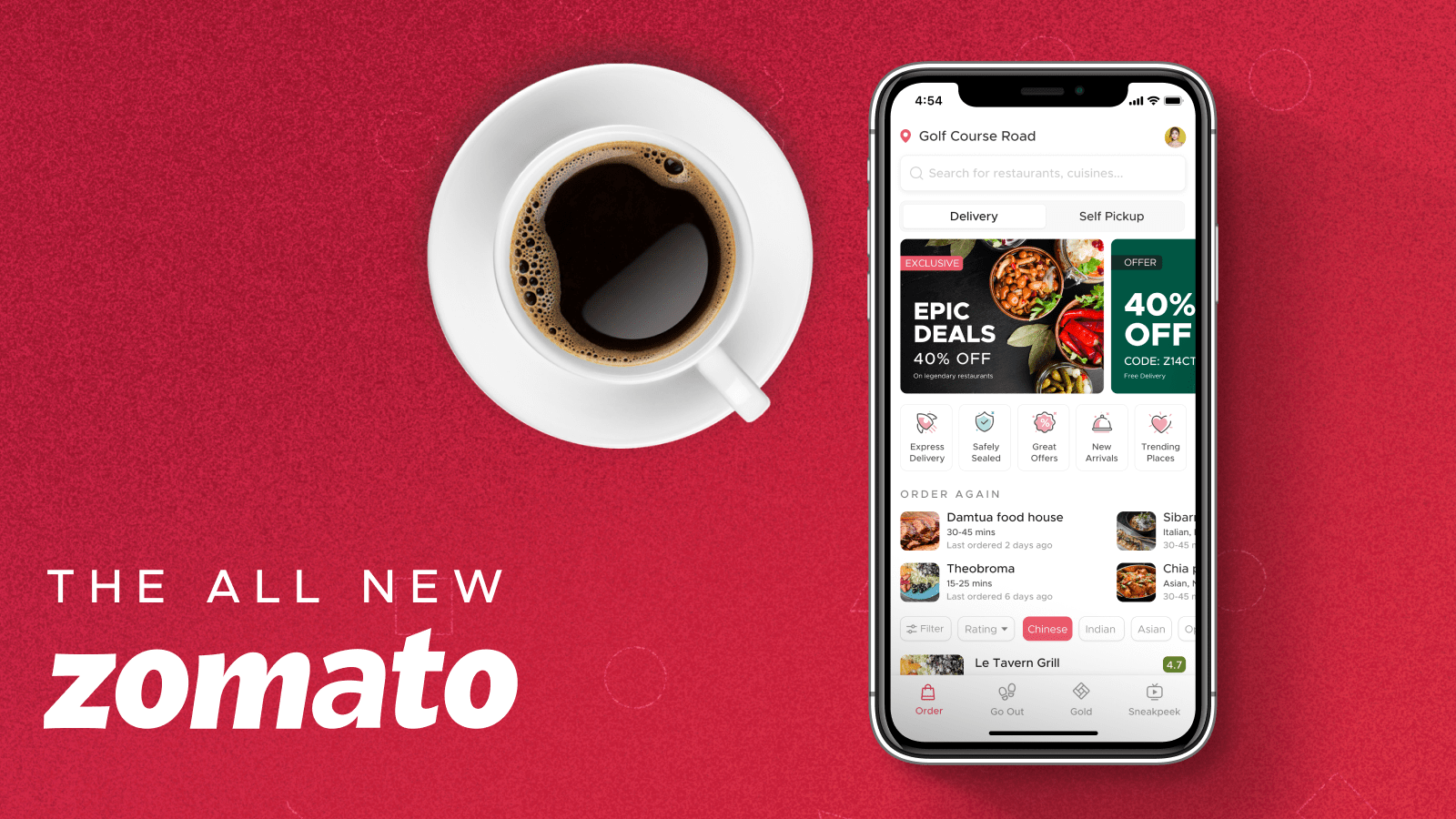
Zomato is an India-based multinational restaurant aggregator and food delivery company. It was founded in 2008 by Pankaj Chaddah and Deepinder Goyal. Zomato majorly being a food-delivery app also provides information on restaurent menus, user-reviews, partner restaurents details, reservations etc. It has its presence in more than 1,000 Indian cities and towns.
Why Zomato?
You can browse restaurants, place orders, and also track your orders in real time. Zomato encompasses a vast range of cuisines and restaurants with unlimited options to satisfy all your cravings, sweet or spicy! It has a user-friendly design that makes ordering food so easy. Hence Zomato app is definitely and should be your go-to destination for food ordering at your specialized local restaurants and for enjoying food in the comfort of your home!
Features of the Zomato App
The Zomato app offers a plethora of features designed to enhance the user experience and streamline the food ordering process:
- Restaurants in your locality: You can browse a plethora of restaurants in your locality based on your present/preferred location and explore all the different types of cuisines sitting in the comfort of your home.
- All the items in the Menu: You can easily glance through the various restaurant menus, and view the dish (food item) descriptions, its prices, and also the dish image which will aid you to choose the PERFECT Dish !!!
- User Ratings and Reviews: Zomato’s family (users) provide comprehensive reviews and ratings for various food items as well as for the restaurant, hence they help you choose the best options available near you.
- Easy Placing Order: The Zomato app enables you to place orders directly from your smartphone / PC / Laptop and it doesn’t matter if it’s Android / iOS. For your convenience the Zomato app lets you choose whether you want the food item to be delivered to your doorstep by the ‘Zomato Delivery Partner‘ or you want to take away your food that’s sizzling hot from the restaurant (with take away option you can avoid the delivery charges – it’s a pocket-friendly option!). You can also customize your food/drink orders according to options listed by the restaurant or through the ‘Cooking Instructions‘ option during checkout on the Zomato app. Hence it makes ZOMATO ideal for food delivery.
- Various Secure Payment Options: Zomato offers a range of payment methods that are secure. It includes credit/debit cards, net banking, digital wallets, UPI, and cash on delivery, ensuring a hassle-free transaction process.
- Real-time Order Tracking: You can track your orders in real-time, from the restaurant’s kitchen to your doorstep. It’s a completely transparent process. You can also contact your delivery agent/restaurant for more information on your order.
- Customer Support: Zomato provides dedicated 24/7 customer support through the app, allowing you to resolve any issues or queries promptly.
A Step-by-Step Guide to Installing Zomato App and Ordering Your Food:
Zomato app is a free, easy-to-download app and very simple to use. Since its size is small it won’t occupy more space on your smartphone. We will now look into a step-by-step guide on how to download ZOMATO on your smartphone (Android/iPhone).
Step 1
Ensure a stable internet connection on your smartphone. Make sure you ‘ON’ your Mobile data or your Wifi is connected.
Step 2
Visit the Google Play Store (for Android users) or Apple App Store (for iOS users) on your smartphone.
Tap on ‘Search Apps &…’ (search bar), type “Zomato” and press enter.
The search results will appear. Find the official Zomato app from the search results and tap on it to open the app page.
Tap on the “Install” button (or “Get” for iOS users) to begin the downloading process.
Wait for the application (app) to download. Later it will be automatically installed on your device. The downloading time will vary depending on your internet connection speed.
Once the installation is complete, the Zomato icon will appear on your home screen/in your smartphone menu. Tap on the Zomato app icon on your home screen to open the app.

Open the Play Store app
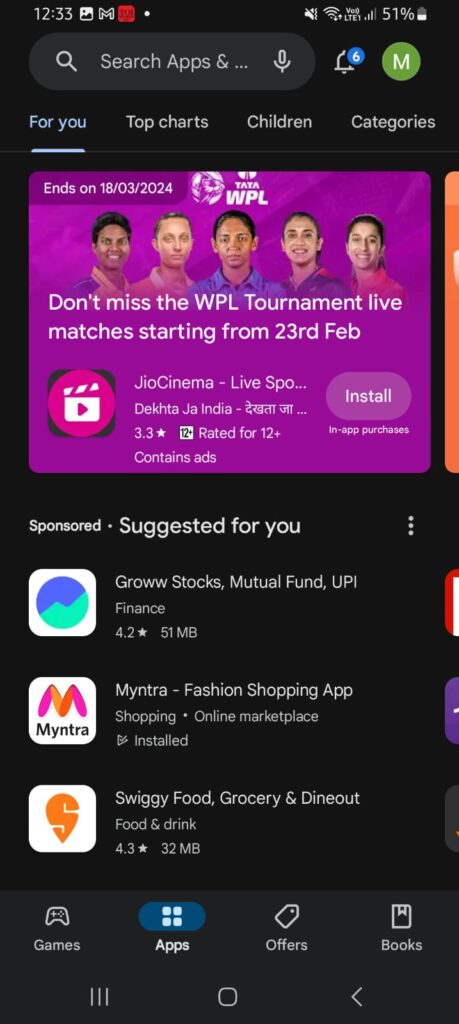
Tap on the search bar
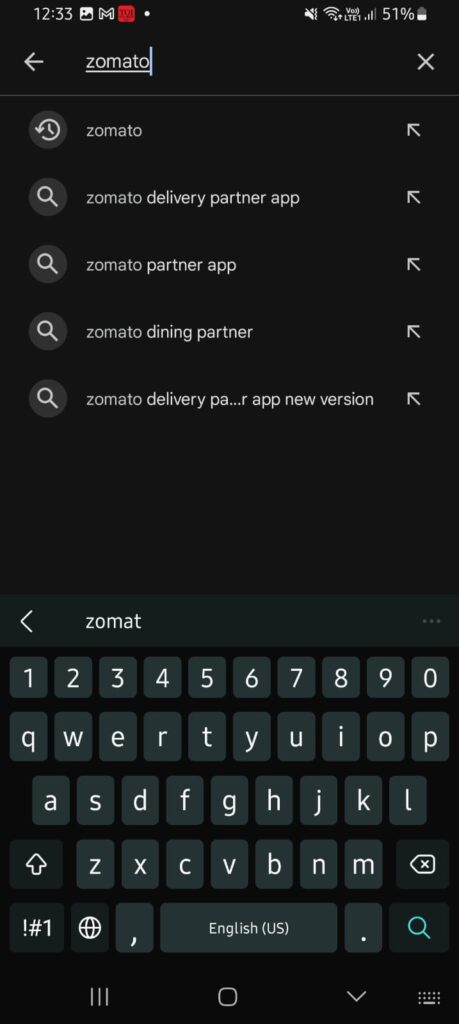
Type “ZOMATO” and click on search
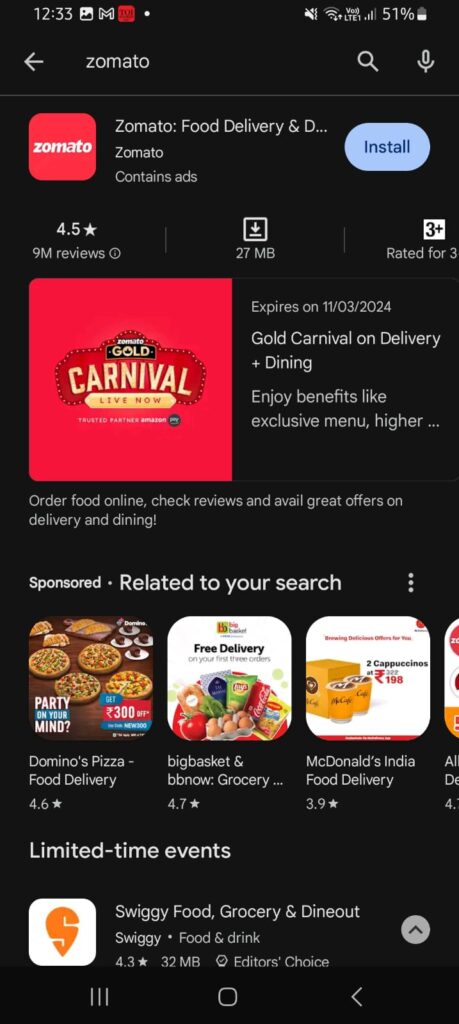
Tap on ‘Install’
Step 3
How to Create a Zomato Account:
When you open the installed Zomato app, your location access will be asked, you can choose to accept or deny it. (The location access is required for address updates and also for viewing the restaurants in that location)
Next, you will be asked to either log in or create a new account. Enter your phone number or tap on the phone number that is displayed. You will proceed to the next page.
If you are a new user, tap on the “Sign Up” or “Create Account” option.
Next, enter your email address or mobile number and follow the instructions shown to complete the registration process.
A verification code will be sent to your email or OTP will be sent to your entered phone number. Enter the details in the given section.
CONGRATULATIONS !!! You are now part of the Zomato Family !!!
WELCOME !!!
After successfully creating your account, you can proceed to log in with your credentials.
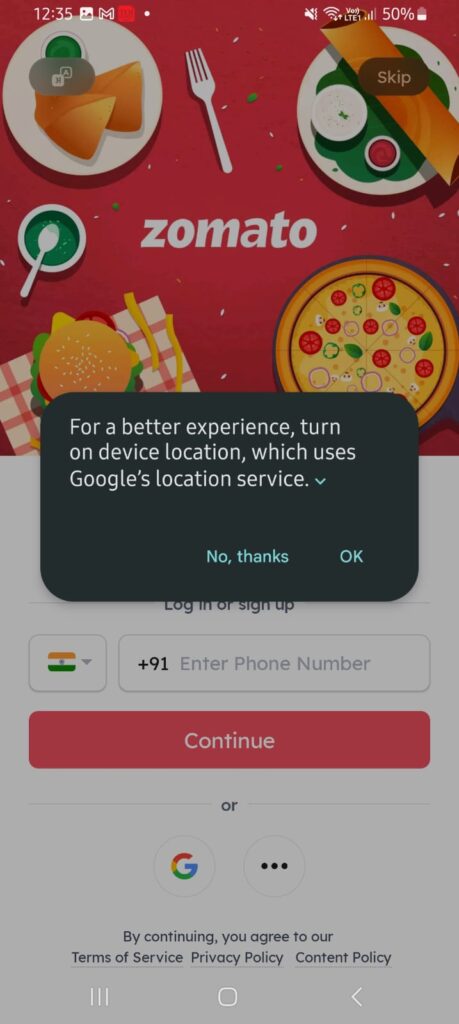
Location access prompt. Click on “OK”

You can click on “while using the app”
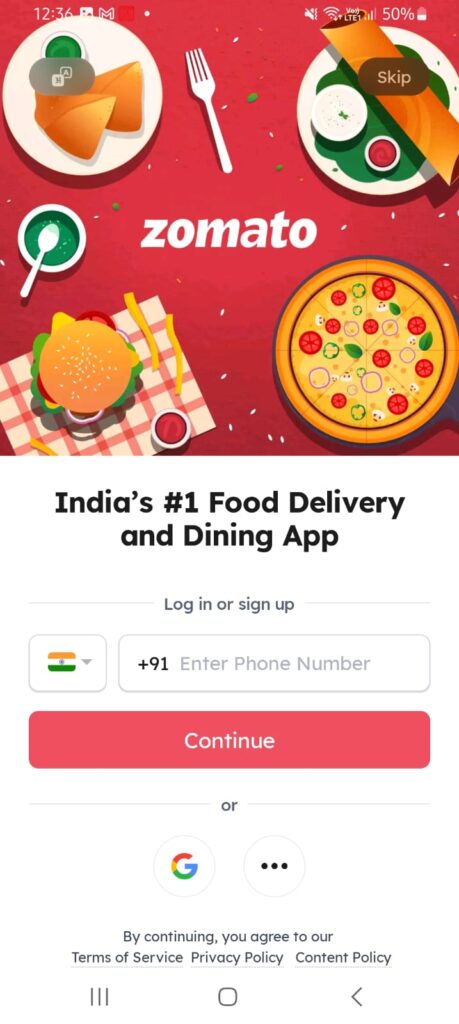
Tap on “Enter Phone Number”
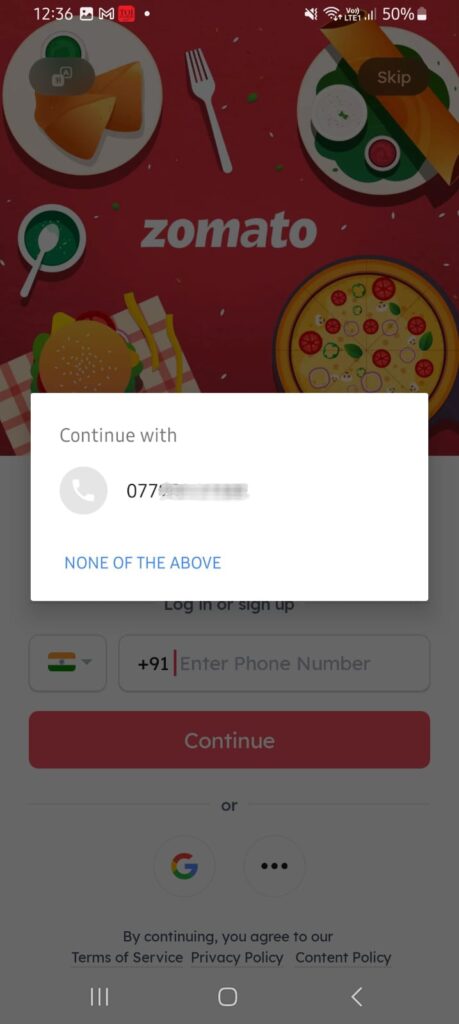
Choose your mobile number / type your mobile number
Step 4
Browsing Restaurants and Menus
After logging in, the home screen is displayed. It showcases various restaurants and cuisines available in your locality.
You can browse through the list of restaurants or use the search bar to find a specific restaurant or cuisine.
Tap on a restaurant to view its menu, and other details such as location, opening hours, and customer reviews.
Step 5
Choosing Food items and placing an order
Browse through the menu of the restaurant you selected. Tap on “Add” to select the items you are craving to eat.
There is ‘NO LIMIT’ to the number of food items you can order. Order as many food items as you can devour 🙂
The items you added are saved in your “CART”
After adding items to your cart, tap on the cart icon located at the bottom of the screen to review your order.
Make any necessary modifications to your order, such as quantity or special instructions.
You can add “COOKING INSTRUCTIONS” to make your order the way you want to eat…
Don’t forget to tap on “View Coupons” and apply them for ‘DISCOUNTS‘
Once you are satisfied with your order, tap on the “Proceed to Checkout” button.
Select your preferred payment method from the available options, such as credit/debit card, net banking, or cash on delivery.
Enter any additional details required for delivery, such as address and contact number.
Review your order and payment details before confirming the order.
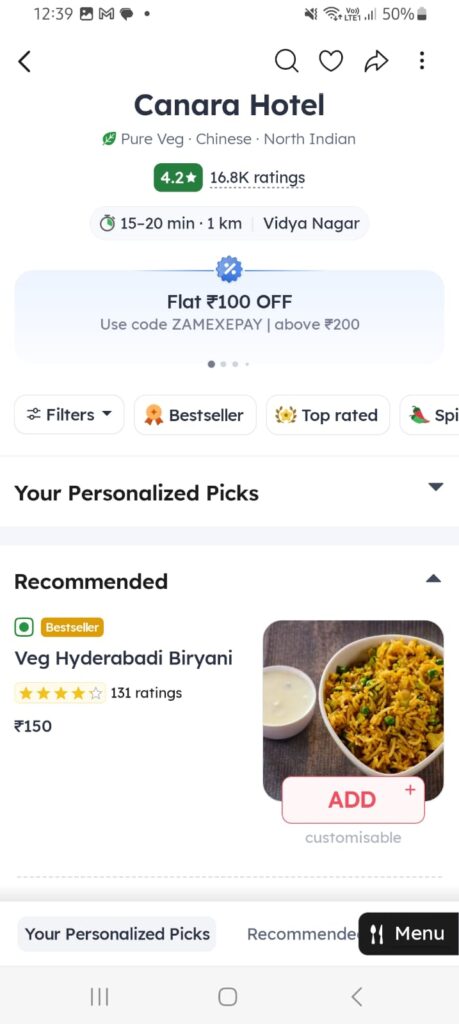
Choose your Restaurant and tap on “Add” to select your dish
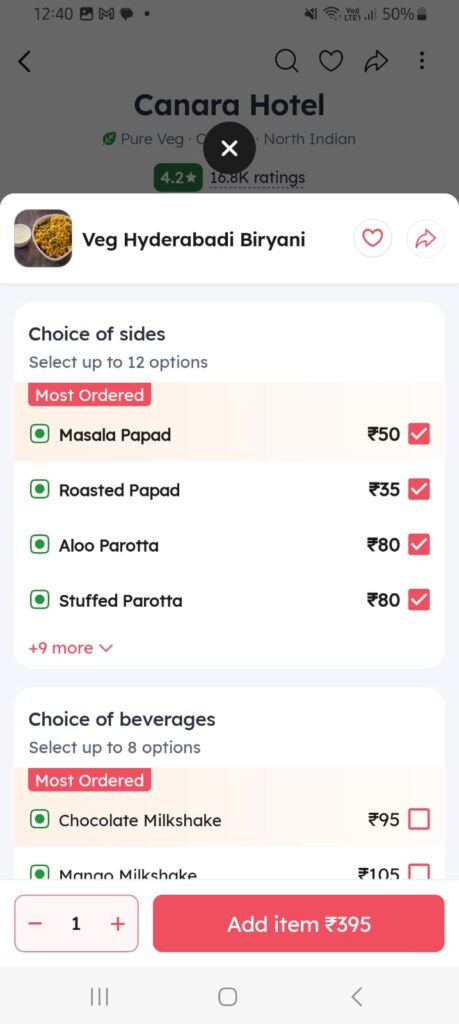
You can also check the boxes for add-ons and then click on “Add item”
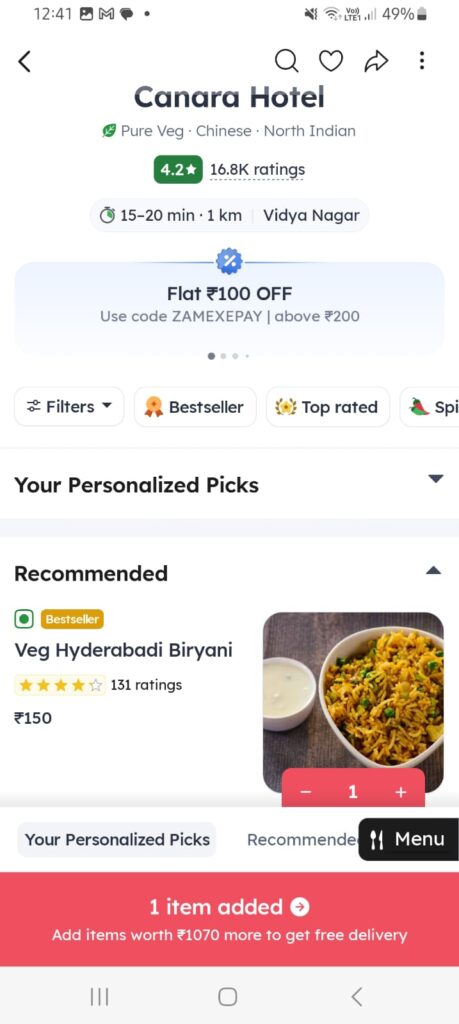
The app shows that your item has been added
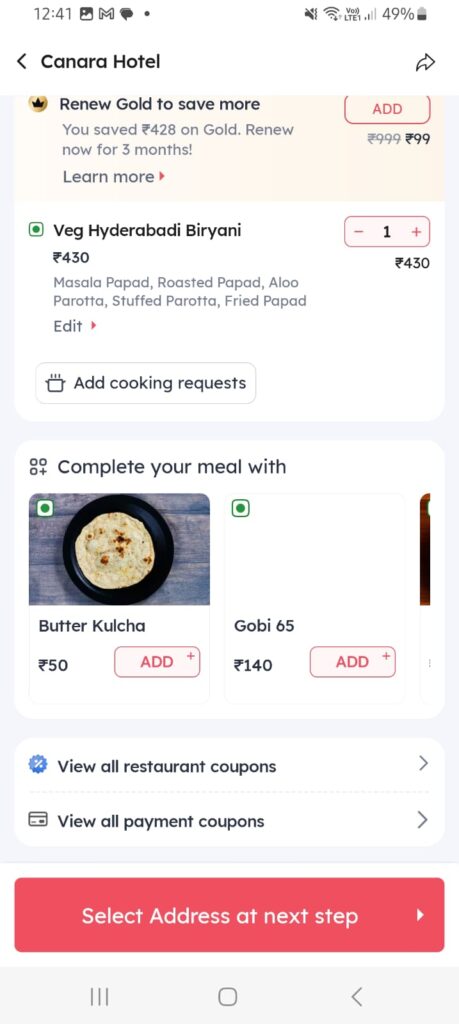
ln your cart your selected food item is displayed
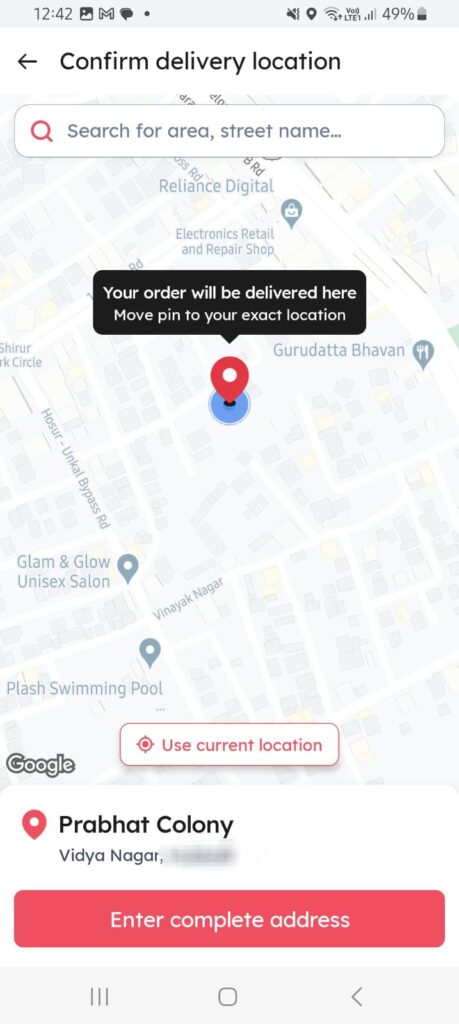
Enter your address and complete the process
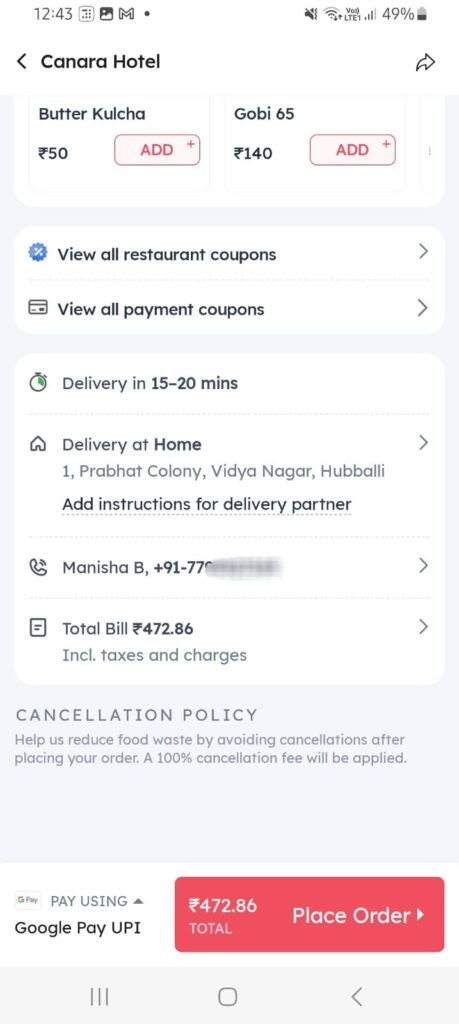
Your address is updated. you can now “Place Order”
Step 6
Tracking Your Order
After placing your order, you will receive a confirmation notification along with an estimated delivery time.
You can track the status of your order in real time through the Zomato app.
The app will provide updates on the preparation, pickup, and delivery stages of your order.
You can also contact the restaurant or delivery partner directly through the app if you have any queries or concerns regarding your order.
You can now relax and wait for your Favourite Food to arrive at your Doorstep!
Facing Issues -> Contact Customer Support Anytime!
The Zomato Customer support is always there for your aid 24 / 7 / 365 days. You will be Zomato’s special customer and family, hence Zomato will always aid you in any issues like order delay/food order cancellation, etc.
Congratulations! You have installed the Zomato app and successfully ordered food through it.
Enjoy your meal! Have a great day 🙂
Leave a Reply